
Agents
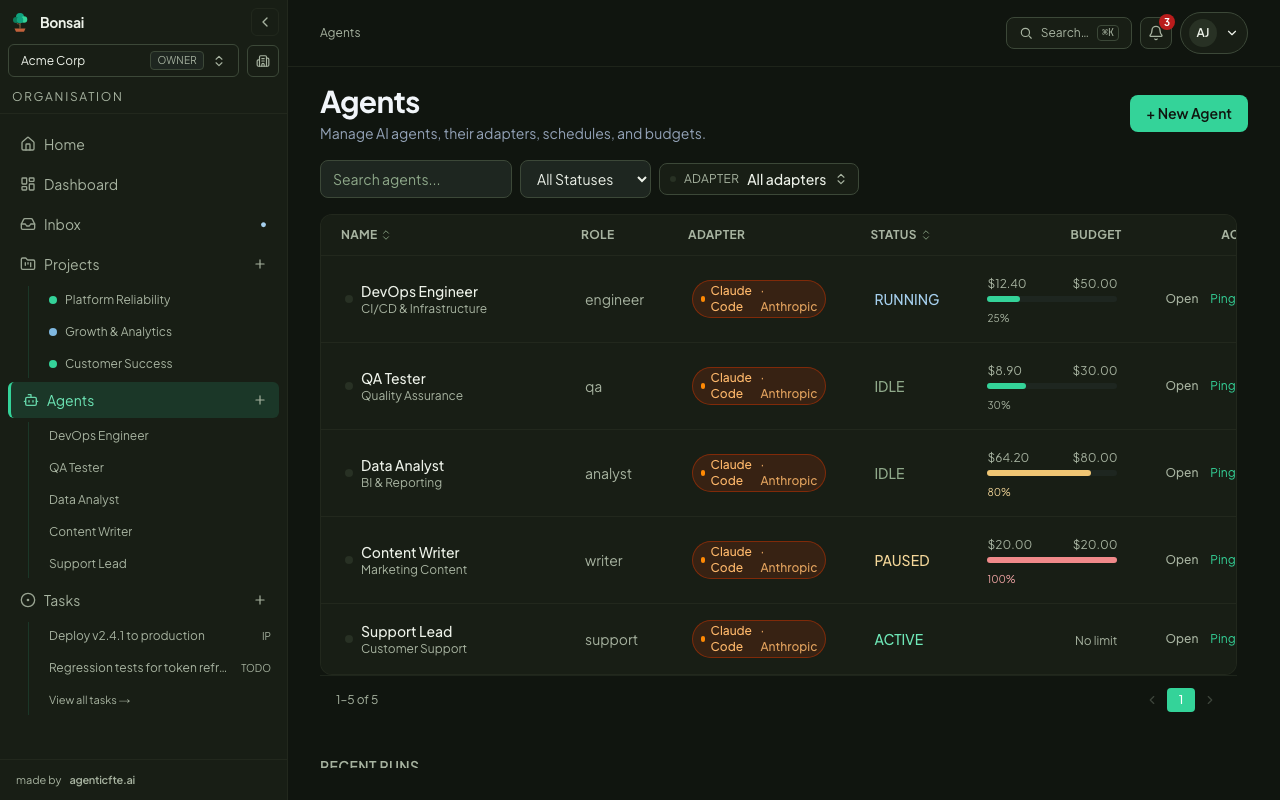
An agent is an AI colleague: a name and role, plain-English instructions, an AI model to think with, and optional skills, tools and a monthly budget. Agents receive tasks, work in runs, and report back.
Creating an agent
Section titled “Creating an agent”Click + New Agent on the Agents page and follow the wizard:
- Name & role — a human name (e.g. “DevOps Engineer”) and its role in the team.
- Adapter — the AI engine the agent uses. Claude Code is available by default; other engines appear only if your administrator has enabled them.
- Instructions — the agent’s brief, in Markdown: what it is, what it does when invoked, what it must not do.
- Budget — an optional monthly spend cap; the agent pauses when it’s reached.
- Confirm — review and create.
Members can create agents. Changing an existing agent’s configuration, and cloning agents, is reserved to organisation owners.
Models and your plan
Section titled “Models and your plan”Your plan decides the most capable model agents may use — up to Haiku (Starter), Sonnet (Professional) or Opus (Enterprise). The same levels apply to OpenAI and Google models.
- Choosing a model above your plan is refused with a message naming the allowed level.
- If an agent has no model set, runs use the best model your plan allows.
- Local models (Ollama, LM Studio) aren’t limited.
See Plan and limits.
Status
Section titled “Status”| Status | Meaning |
|---|---|
IDLE / ACTIVE |
Available — not working right now. |
RUNNING |
Working on a run. |
PAUSED |
Paused by a person, or automatically after reaching its monthly budget. |
ERROR |
The last run failed — open the chat to see why. |
TERMINATED |
Stopped from the agents list. Tasks it was working on are set to BLOCKED. |
Agent detail
Section titled “Agent detail”The agent page has tabs for Chat, Tasks (the agent’s tasks), Overview (status, recent runs and spend), Instructions, Skills, Memory, Hooks, Tools and Settings. Budget and less common views (Journal, Context, Tests, Evidence) are under the ⋯ menu. The buttons at the top let you assign a task, Ping, pause, edit or clone the agent.
The main working view: talk to the agent, hand it work, and watch runs stream live.
- Sessions are listed on the left, grouped by Today, Yesterday and Older. Hover a finished session and click the bin icon to delete it together with its replies and logs. A session that is still running must be stopped first.
- Long, structured messages (headings, lists, code) are shown formatted for easy reading.
- Stop run interrupts the agent’s current run.
Instructions
Section titled “Instructions”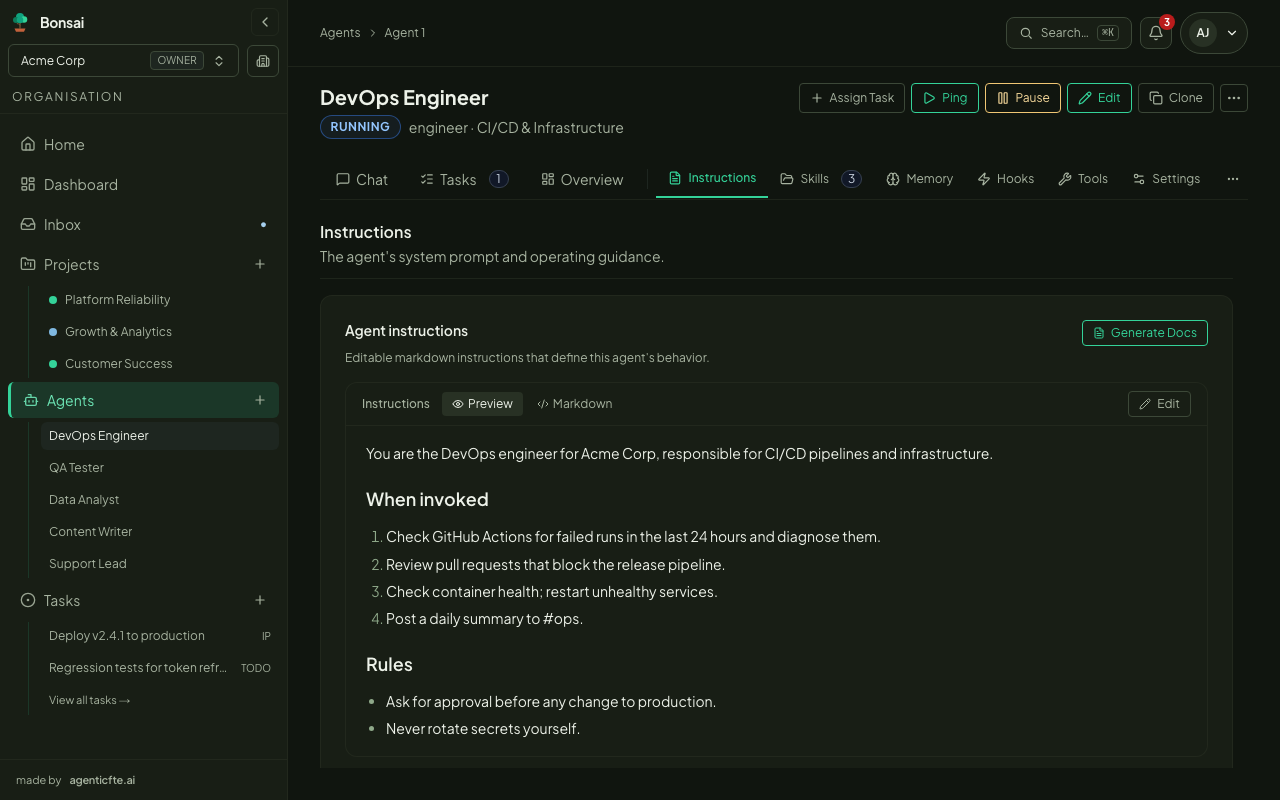
The agent’s brief, editable in Markdown. Load a template from the dropdown, or click Generate Docs to produce a documentation page from the current instructions and skills.
Skills
Section titled “Skills”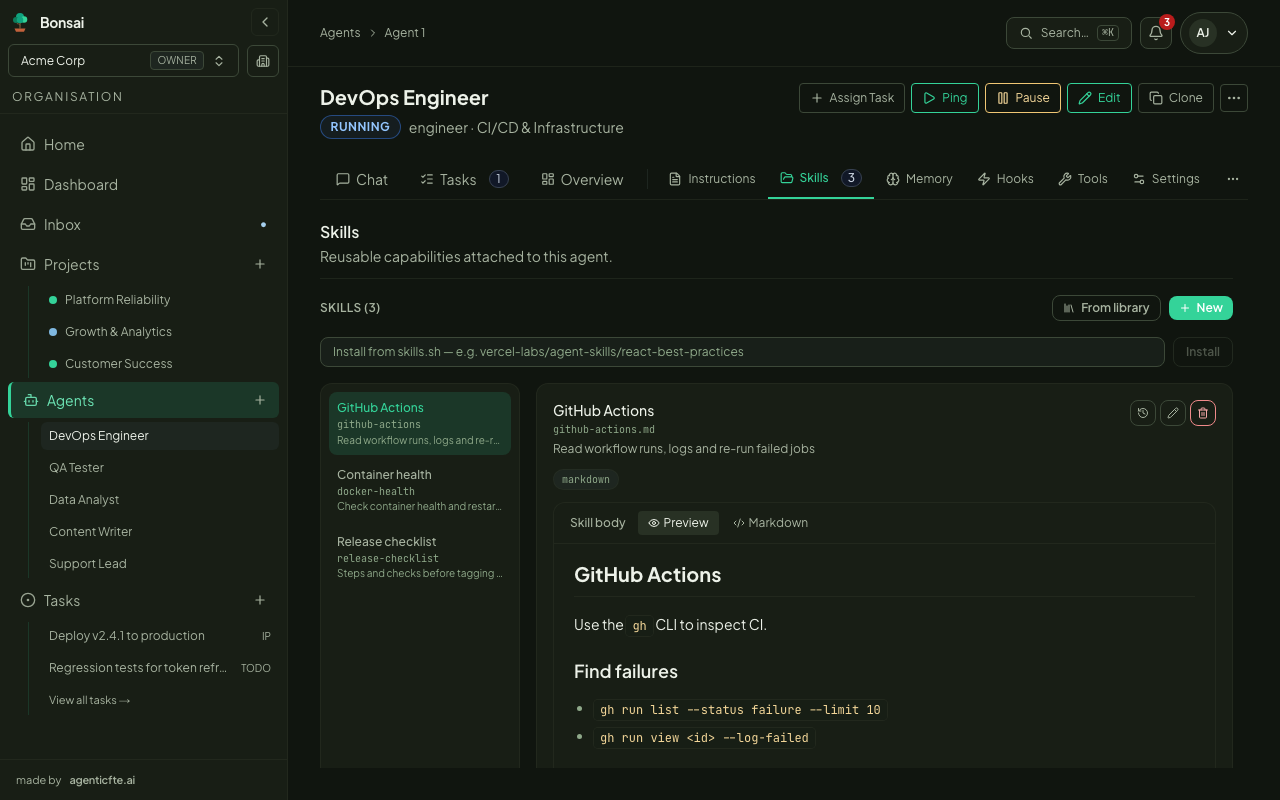
Skills are reusable know-how documents (Markdown or YAML) the agent can use during a run. Attach skills from your organisation’s library on the Skills page.
Memory
Section titled “Memory”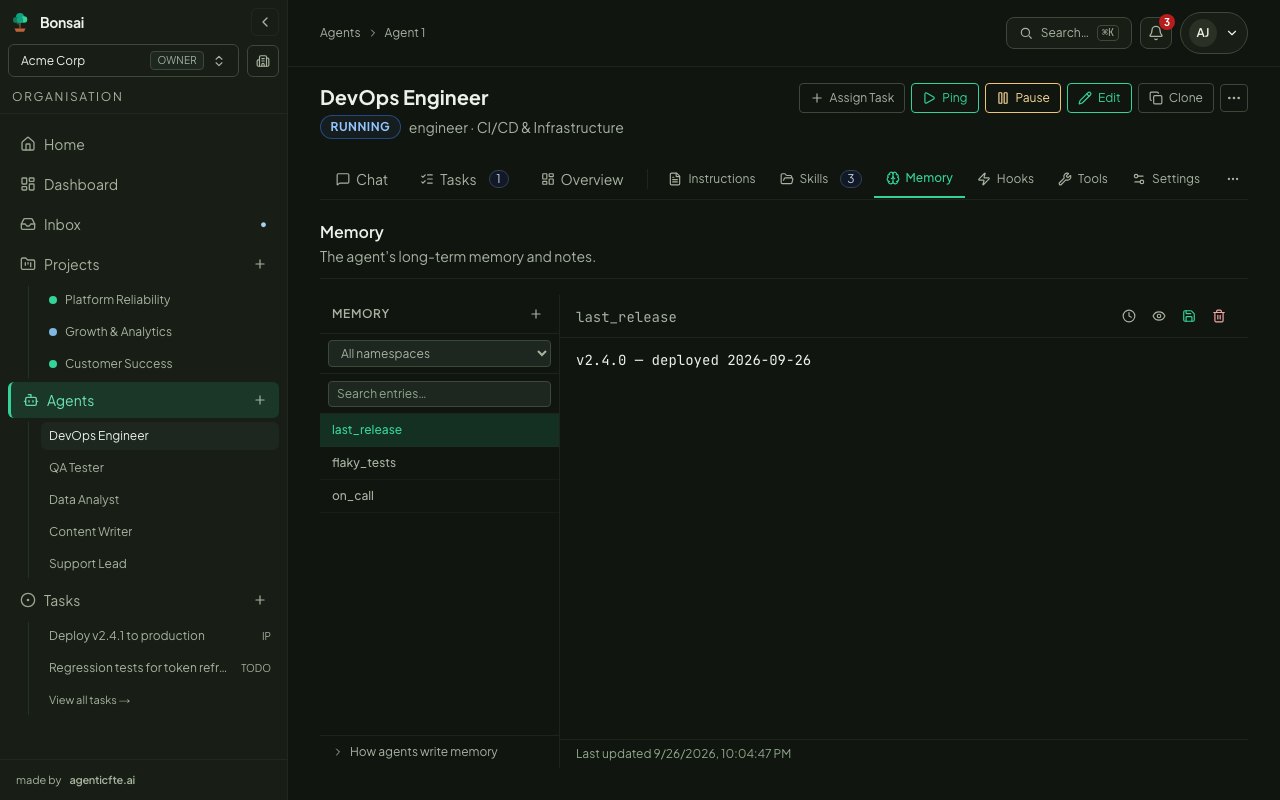
A key/value store the agent reads and writes across runs to remember things (e.g. last_run_date, on_call_engineer). You can view and edit entries here.
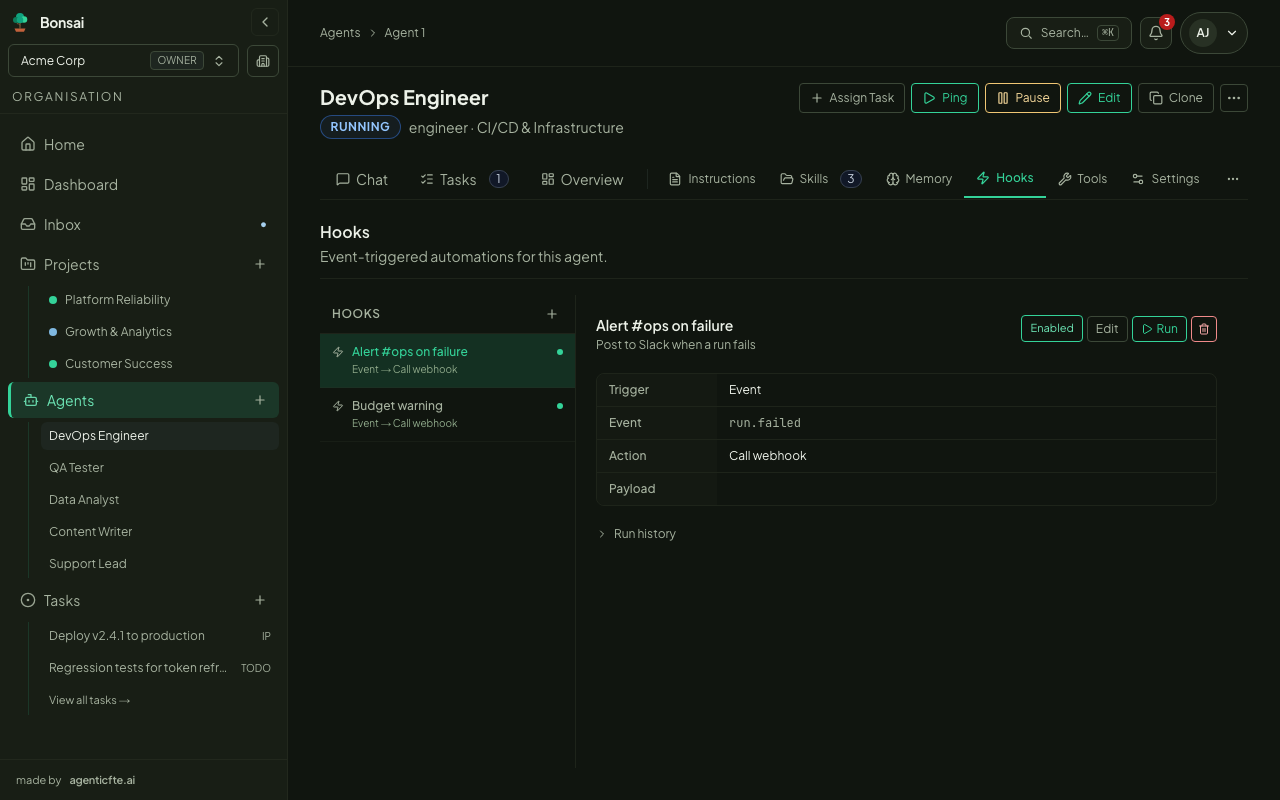
Hooks run something automatically for this agent — on an event, on a schedule, on a slash command, or when you click Run. A hook either runs a command or calls a webhook (for example a Slack incoming webhook).
Events a hook can listen to:
| Event | When |
|---|---|
run.started / run.completed / run.failed / run.cancelled |
A run starts, succeeds, fails or is stopped |
run.blocked_by_approval |
A run is waiting for an approval |
task.status_changed |
One of the agent’s tasks changes status |
budget.warning / budget.critical / budget.exceeded |
Monthly spend crosses a budget threshold |
approval.approved / approval.rejected |
One of the agent’s approval requests is decided |
Choose which of your organisation’s tools (integrations, MCP servers) this agent may use. With none selected, the agent uses the organisation-wide set. New tools are added by your administrator.
Settings
Section titled “Settings”The adapter and model, the routing policy, and the heartbeat schedule — a cron expression that wakes the agent on its own (separate from Routines).
Budget
Section titled “Budget”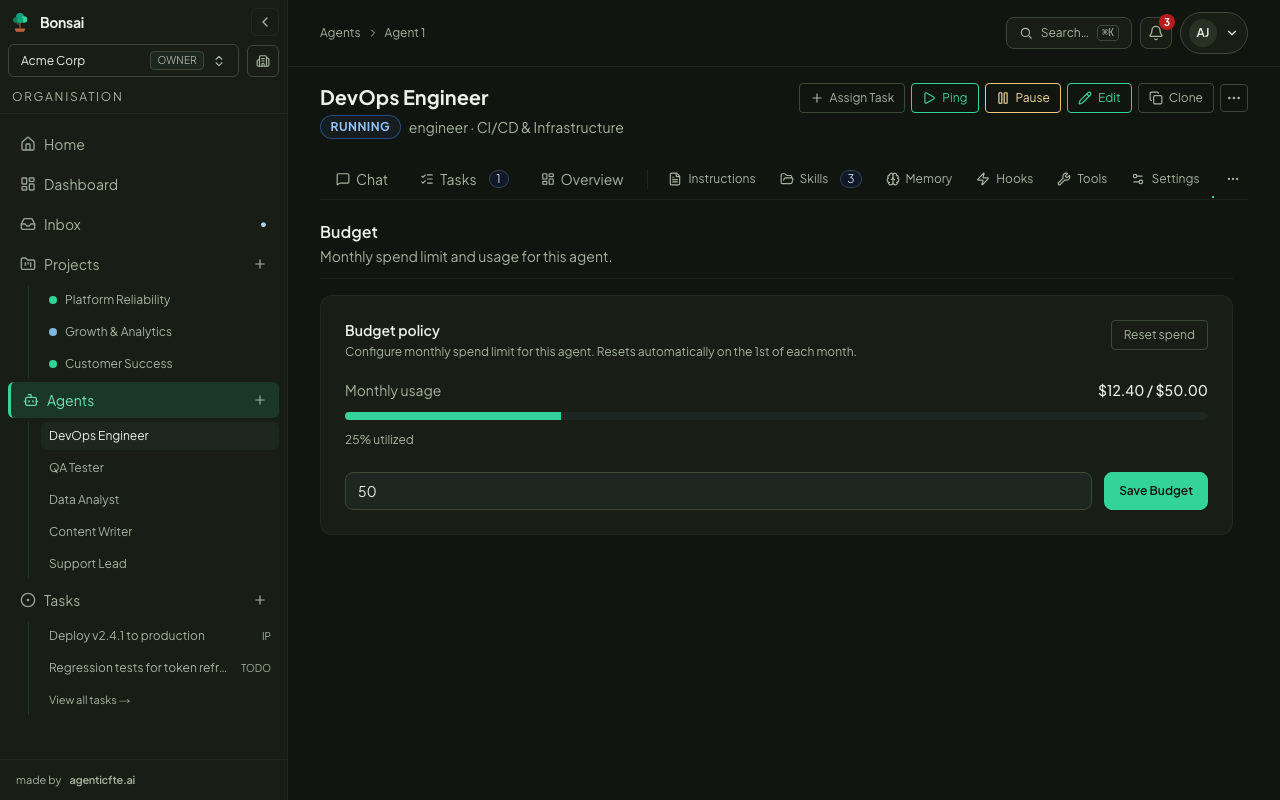
Set or change the monthly spend cap and see month-to-date spend. See Budgets & spend.
Cloning an agent
Section titled “Cloning an agent”Owners can click Clone on an agent to duplicate its configuration (instructions, skills, hooks, budget) as a new agent.
Pinging an agent
Section titled “Pinging an agent”Click Ping to wake the agent once without a task — handy for checking new instructions.